Spiro Art: Spirograph Drawing
Nexify ForgeArt & Design
3.852.00 Reviews
- Version
- 1.0.6
- Installs
- 100.00K
- Age Rating
- Everyone
Screenshots
Our Review of Spiro Art: Spirograph Drawing
 Analysis by Appyee
I approached Spiro Art: Spirograph Drawing as a small creative break rather than a serious drawing studio, and that distinction matters. The app belongs to the Art & Design category, but its appeal is less about producing polished illustrations and more about watching repeated lines turn into balanced, satisfying patterns. I found it easiest to enjoy when I stopped trying to control every detail and treated each design as a quick experiment.
That makes it a natural fit for a quiet moment after work, a short screen activity before bed, or a simple way to keep children occupied with something creative. It is free to start, rated for Everyone, and developed by Nexify Forge. The current version is 1.0.6, so I see it as an early, focused app rather than a mature drawing suite packed with professional tools.
How the current experience feels
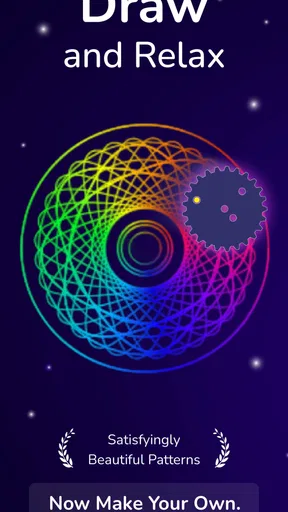
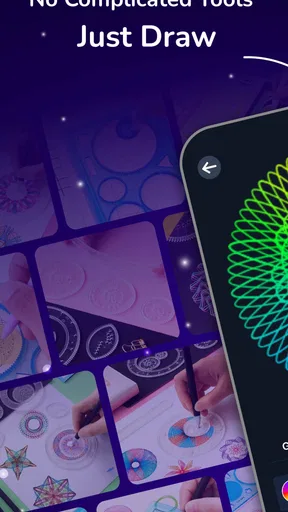
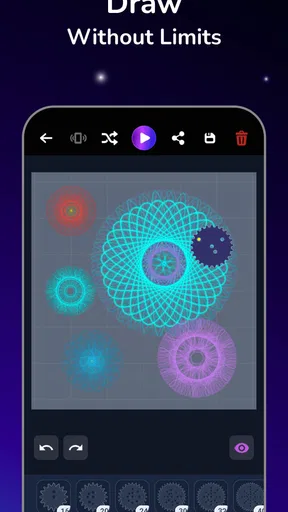
The central idea is straightforward: create spirograph-style drawings by combining rotating shapes and repeated paths. Instead of beginning with a blank canvas and having to invent a subject, I begin with a mathematical-looking structure and let the movement generate the visual result. That removes much of the pressure that comes with ordinary drawing apps.
My favorite part is the gradual reveal. A pattern can look plain during its first few passes, then become much more interesting as the lines overlap. The result is calming because the process has a rhythm: adjust, draw, observe, and decide whether to try again. It feels closer to visual tinkering than traditional sketching.
The app’s short store description calls it “Spiro Art,” but the useful way to understand it is as a compact pattern drawing app. You are not opening it to paint a landscape, edit a photograph, or build a vector logo. You are opening it when repeated geometry, symmetry, and color are more appealing than freehand accuracy.
That focus is a strength. Many creative apps present dozens of brushes, layers, filters, and menus before the first mark appears. Here, the concept is easier to grasp. A first-time user can usually understand the basic attraction quickly, even without experience in digital art.
A practical session for beginners
When I use an app like this, I recommend starting with one simple pattern instead of changing everything at once. Pick a shape, let the drawing develop, and pay attention to how spacing changes the result. If you alter several controls together, it becomes harder to understand which adjustment created the effect you like.
A useful habit is to make three intentionally different attempts: one with a restrained design, one with a denser pattern, and one with a bold color choice. This turns a casual session into a small visual comparison. It also helps you discover your own preference without needing a tutorial-heavy workflow.
For children, I would sit with them during the first session and explain that an imperfect pattern is not a failed drawing. The appeal is experimentation. A parent can turn the activity into a conversation about symmetry, repetition, and how small changes affect a larger image, while still keeping it playful.
Where it fits in everyday life
Imagine having ten minutes while waiting for an appointment. A conventional illustration app may feel too demanding because you need a subject, a plan, and enough time to develop it. Spiro Art works better in that situation because a short session can still produce a complete-looking pattern.
I also see a use for it as a low-pressure warm-up before more serious creative work. Drawing a few repeating forms can help me move from passive scrolling into an active mindset. It does not replace sketching practice, but it can make the transition easier when a blank page feels intimidating.
Another practical use is creating simple visual material for personal projects. A generated pattern could inspire a notebook cover, a background concept, a classroom activity, or a color study. I would not treat the app as a full design pipeline, but it can provide starting points that would be tedious to construct manually.
What the current version tells me
Version 1.0.6 suggests that the product is still in an early stage of its life. I would read that as a reason to judge the present experience on its own terms, not on what a larger art platform might eventually become. The app already has a clear identity: quick, repetitive, pattern-based drawing with a relaxing mood.
At the same time, an early version can feel narrower than users expect if they arrive looking for a complete creative toolbox. I would not install it expecting the depth of a professional illustration application. Its value comes from doing one kind of activity with little friction, not from covering every artistic need.
The app has attracted over one hundred thousand installs and holds a 3.8 average from around one thousand ratings. Those figures suggest that it has found an audience, while the rating also points to a mixed experience rather than universal approval. I think that balance is understandable: people who enjoy procedural patterns may find it immediately appealing, while users wanting broad drawing freedom may see the limits quickly.
What has changed and what that means for users
The clearest verified point of evolution is the current 1.0.6 release, following the app’s release on June 16, 2026. I would describe this as a product that is establishing its foundation rather than one with a long, documented history of major transformations. That makes the current build important for new users, because the experience may still be shaped by ongoing refinement.
I am careful not to turn the version number into a promise. A newer build can indicate maintenance and progress, but it does not automatically mean that every missing tool has arrived. For someone already using the app, the sensible approach is to judge whether the present drawing flow remains comfortable and whether future updates improve the areas that matter to them.
Existing users are likely to benefit most if they value stability and a consistent creative routine. Because the app has a narrow central purpose, even modest refinements to the drawing process could make repeated sessions feel smoother. However, users who are waiting for advanced editing, broader export control, or a more complete illustration workflow should keep their expectations measured.
One trade-off I noticed with this style of application is that simplicity can become repetition. The first few patterns feel novel because the visual system is easy to explore. After that, the experience depends on whether you enjoy refining variations. If you need a constantly expanding set of activities, a larger art app may hold your attention for longer.
Free access and the purchase decision
The app is free, but it includes in-app purchases ranging from $4.99 to $49.99 per item. That is the detail I would consider before recommending it to a child or installing it on a shared device. The free entry point makes trying the basic experience easy, yet the presence of paid items means the full journey may not feel identical for every user.
My advice is to spend time with the free experience before deciding whether any purchase is worthwhile. A paid option should solve a problem you actually have, such as wanting more creative flexibility, rather than being an impulse purchase made simply because a pattern looks attractive. If the basic drawing loop already feels repetitive, spending more is unlikely to fix the underlying mismatch.
For families, I would discuss purchases in advance and use the device’s normal purchase controls. The Everyone rating is reassuring from a content standpoint, but an age rating does not remove the need for sensible supervision around spending or screen time.
How it compares with ordinary alternatives
Compared with a standard sketching app, Spiro Art is easier to start but less open-ended. A blank canvas gives you control over every mark, which is better for portraits, handwriting practice, diagrams, or detailed illustration. The spirograph approach gives up that freedom in exchange for structure and immediate visual feedback.
Compared with coloring apps, it is more active. Coloring usually begins with an existing outline, while this app makes the repeated design itself part of the activity. That can feel more rewarding if you want to see an image develop, although users who prefer quiet filling and minimal decision-making may find a coloring app more relaxing.
Compared with a professional design tool, it is far less suitable for precise client work. I would choose a dedicated vector or illustration application when exact dimensions, layers, typography, or detailed editing are essential. I would choose this one when the goal is a quick pattern, a creative reset, or an approachable introduction to geometric art.
Small techniques that improve the experience
My first non-obvious tip is to judge a design at more than one stage. A pattern that looks too sparse early on may become balanced later, while an initially exciting design can become visually crowded. Waiting before restarting helps avoid throwing away a promising result too soon.
My second tip is to use contrast deliberately rather than automatically choosing the brightest combination. Repeated lines already create visual activity, so a calmer palette can make the structure easier to read. When the pattern is dense, restraint often produces a more usable image than adding more visual intensity.
My third tip is to treat failed attempts as references. Instead of deleting a design mentally, note what caused the problem: excessive density, weak contrast, or a shape that became difficult to follow. That turns random experimentation into a basic design exercise and makes later sessions more intentional.
A fourth useful workflow is to create families of related patterns. Keep the general idea similar while changing only one aspect at a time. The resulting set can work as a personal mood board or a source of background ideas. This is more satisfying than producing unrelated images if you want to understand how the app’s visual system behaves.
Where the app still falls short
The biggest limitation is the same quality that makes the app approachable: its narrow scope. If I want to draw something recognizable from scratch, edit an imported image, or build a multi-step illustration, this is not the right tool. Its structured process cannot replace the control of a conventional art workspace.
There is also a risk of creative sameness. Repeated geometry is the point, but it can make sessions blur together if the available choices do not keep offering fresh direction. Users who need a large library of brushes, materials, or artistic styles may reach the edge of the experience quickly.
I would also be cautious about recommending it as a learning tool for formal drawing fundamentals. It can introduce ideas such as symmetry and repetition, but it does not automatically teach proportion, perspective, anatomy, or observational sketching. It is better viewed as an approachable creative activity than as a structured art course.
The paid model may be another point of friction. Since purchases can reach $49.99 per item, I would want to understand the practical benefit of any paid content before committing. The free version is the right place to test whether the app’s basic rhythm suits you, especially if you are comparing it with entirely free alternatives.
Who should use it and who should skip it
I would recommend it to someone who likes geometric designs, calming repetition, and short creative sessions. It is especially suitable for beginners who feel blocked by a blank canvas, parents looking for an age-appropriate art activity, and casual users who want something more engaging than passive entertainment.
I would also recommend it to designers who enjoy collecting visual references. Even when I do not need a finished image, generating variations can reveal interesting relationships between spacing, symmetry, and color. The app is useful as a source of ideas, provided I do not mistake inspiration for a complete production tool.
I would skip it if my main goal were professional illustration, precise technical drawing, or unrestricted freehand control. I would also skip it if I quickly lose interest in repeating a visual process. In those cases, a full drawing suite, a vector editor, or a more varied creative game would be a better match.
What I would watch next
As the app develops, I would pay attention to whether future releases deepen the central drawing experience without burying it under unnecessary menus. The best direction would be thoughtful refinement: more meaningful ways to explore patterns, clearer control over the creative process, and a smoother path from experiment to finished image.
I would also watch how the paid items affect the balance between accessibility and depth. A free app can remain welcoming when its optional purchases feel understandable and proportionate to the value they add. If the most satisfying possibilities become difficult to reach without spending, that could change my recommendation for casual and family users.
For current users, the practical question is simple: does version 1.0.6 give you enough variety to return regularly? If yes, the app already succeeds as a focused relaxation tool. If not, waiting for meaningful improvements or choosing a broader alternative may be wiser than forcing yourself to enjoy a format that does not fit.
My final view is positive but specific. Spiro Art is not a replacement for a serious drawing application, and it does not need to be. Its strongest quality is that it makes patterned creation feel approachable, quick, and pleasantly absorbing. I would keep it installed for short creative breaks, recommend it to friends who enjoy visual repetition, and suggest trying the free experience first. Its best use is as a low-pressure pattern-making space, not as an all-purpose art studio.
Verdict
Strengths of Spiro Art: Spirograph Drawing
- Simple controls make it easy for beginners to create intricate designs.
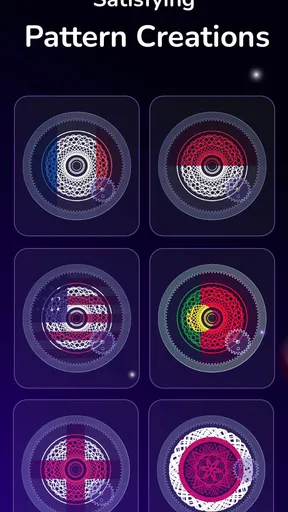
- Many spiral patterns can be customized with different colors and settings.
- Works well as a relaxing, creative activity for short sessions.
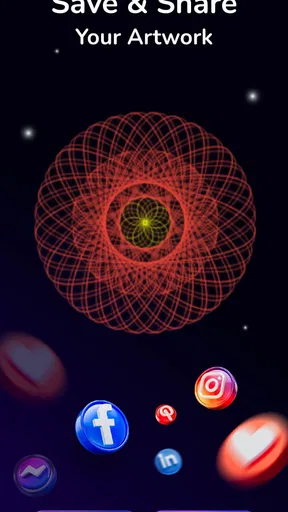
- Finished artwork can be saved and shared with others.
- Suitable for children and adults interested in geometric art.
Limitations of Spiro Art: Spirograph Drawing
- Some advanced tools or designs may require in-app purchases.
- The interface can feel repetitive after extended use.
- Complex patterns may take time to render on older devices.
- Limited drawing freedom compared with full-featured art apps.
- Sharing options may depend on the device’s installed apps.
Other Releases by Nexify Forge
View All
Falling Loop Filter Challenge
Entertainment4.4

Magic Wheel - Spin Art Drawing
Art & Design4.0

AI Voice Changer
Music & Audio4.5
Similar Picks in This Category
View All
Canva: AI Photo & Video Editor
Canva4.8

PENUP – Drawing-sharing SNS
Samsung Electronics Co., Ltd.4.5

Crafto
Kutumb App4.6

Sketchbook
Sketchbook4.1

ibis Paint X
ibis inc.4.5

Adobe Express: AI Photo, Video
Adobe4.6
Frequently Asked Questions
What is Spiro Art: Spirograph Drawing?
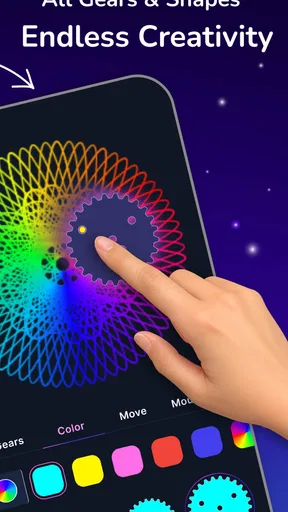
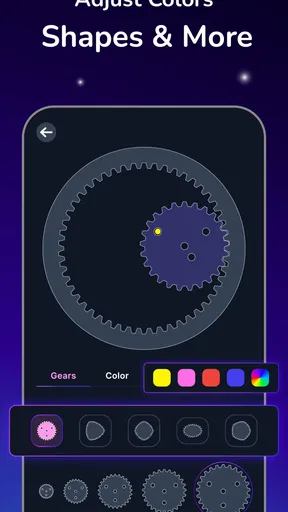
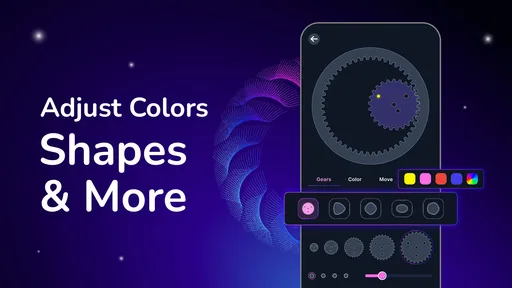
Spiro Art: Spirograph Drawing is a creative drawing app that lets you produce colorful geometric patterns inspired by traditional spirograph toys. After choosing shapes, colors, brush styles, and drawing settings, you can create symmetrical artwork by moving or rotating virtual gears and templates. It is designed for casual creativity, relaxing experimentation, and users who enjoy digital coloring and pattern-making.
How do you create artwork in Spiro Art: Spirograph Drawing?
To create a design, select a template or gear arrangement, choose your preferred colors and drawing tools, and begin adjusting the movement or rotation of the virtual components. The app gradually builds intricate lines and repeating shapes on the canvas. You can experiment with different combinations, undo mistakes, clear the screen, and refine the result until the pattern looks the way you want.
Is Spiro Art: Spirograph Drawing suitable for children?
The app is generally easy for children to understand because it does not require advanced drawing skills. Its simple controls and colorful results can make it an enjoyable creative activity for younger users, while adults may also appreciate it as a relaxing pastime. Parents should still review the app’s advertising, purchases, privacy information, and device permissions before allowing unsupervised use.
Can artwork created in Spiro Art: Spirograph Drawing be saved or shared?
After completing a pattern, users can usually save the finished image to their device or share it through compatible apps, depending on the version and operating system. Sharing options may include messaging services, social networks, or other installed applications. Availability can vary by device, so it is worth checking the export and sharing buttons before investing significant time in a design.
Does Spiro Art: Spirograph Drawing require an internet connection or include ads?
Basic drawing features may work without a continuous internet connection, which makes the app convenient for offline creative sessions. However, some functions, advertisements, updates, or optional content may depend on connectivity. The free version may also display ads or offer in-app purchases. Check the store listing and the app’s purchase settings to understand what is included before downloading.
